
I once retyped ten generated filters into REW by hand, reading them off the phone screen. I fumbled the third one, 1.40 became 4.10, and spent an evening listening to a low end that sat oddly high. Export exists for that reason.
The short answer
Sonir emits PEQ in exactly one format: REW’s “Filter Settings” text. REW loads it as is. For Equalizer APO, strip the two header lines and put the Preamp: and Filter N: lines into config.txt. What’s inside is up to 10 peaking (PK) filters plus a negative preamp for headroom. Both the preview and the export are free.
Why one format covers it
REW’s Filter Settings format has become the lingua franca of this corner of audio. One line per filter, like this:
Preamp: -6.0 dB
Filter 1: ON PK Fc 42.0 Hz Gain -6.00 dB Q 1.400
Filter 2: ON PK Fc 68.5 Hz Gain -3.20 dB Q 2.100
Equalizer APO’s ParametricEQ syntax uses nearly the same line shape. So Sonir doesn’t put a format picker in front of you: one text file reaches both. If you run a miniDSP, loading this into REW first and then rounding down to your unit’s band count is still the fastest route.
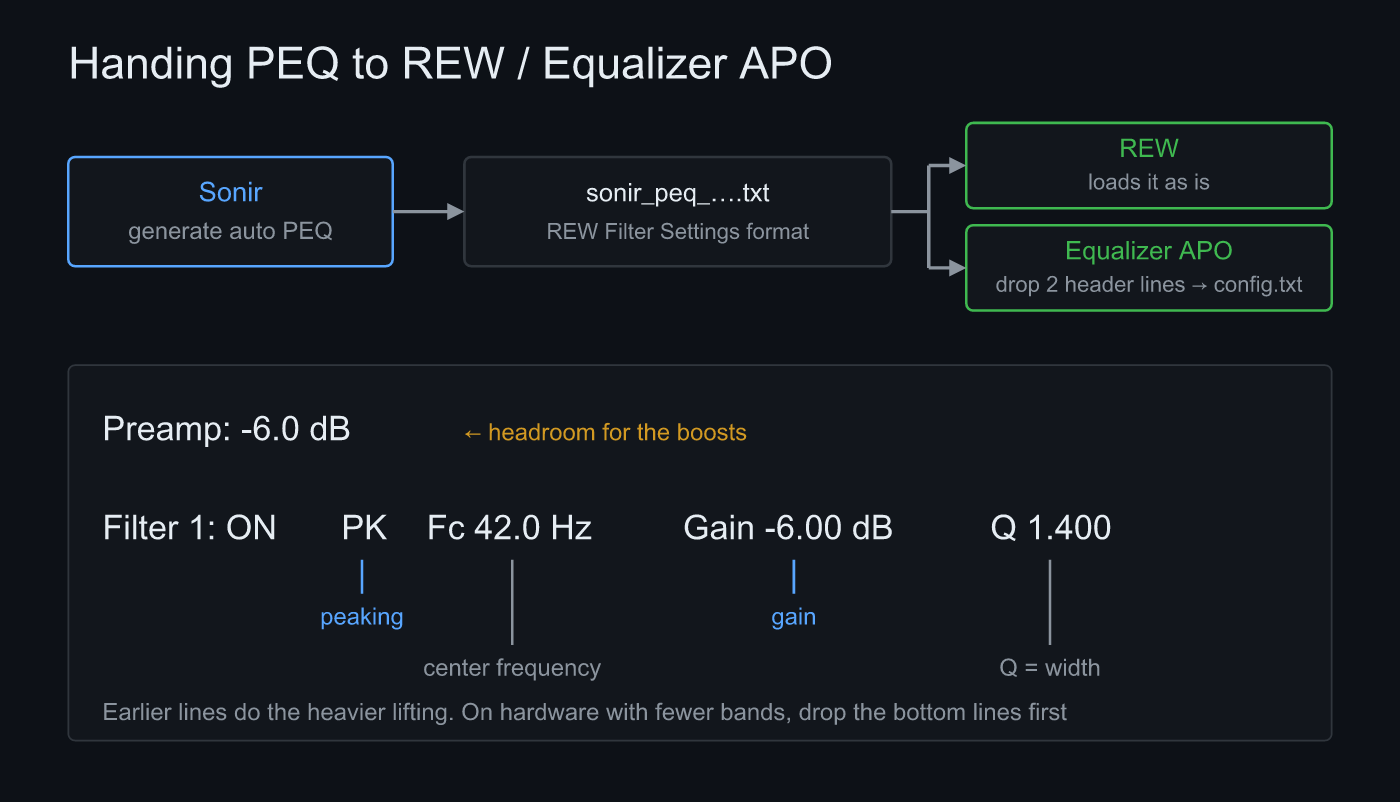 One export format. REW loads it directly; APO takes it once the two header lines are gone
Worth learning to read, too. PK is peaking, Fc the center frequency, Gain how much is added or removed, and Q the width, narrower as the number grows. Sonir places filters starting from the largest residual inside 20–300 Hz (default), so the earlier lines do the heavier lifting. When you move to hardware with fewer bands, throw away the bottom lines first.
Steps
- Sweep with a calibrated mic: auto PEQ only appears for a mic with a registered calibration file. Recording peak inside -6 to -12 dBFS.
- Put the FR card in EQ mode: open the saved measurement and flip the frequency response card from FR to EQ. Measured and target overlay each other.
- Choose the target and EQ ceiling, then generate: Flat / Tilt / Harman / B&K, ceiling around the default 300 Hz. “Generate Auto PEQ” gives you the filter list, the preamp and the green after curve.
- Export: “Export PEQ (REW/APO)” opens the share sheet. The file is named
sonir_peq_<measurement id>.txt. Mail it to yourself or drop it in a cloud drive to pick up on the desktop. - Load it in REW: load the filter settings from file in REW’s EQ window. Fc, Gain and Q land exactly as generated, and the typos disappear.
- Move it into Equalizer APO: handle the two header lines, then place
Preamp:andFilter N:into config.txt.
Where APO trips you up
The exported text starts with these two lines:
Filter Settings file
Generated by Sonir · https://sonir.app
REW skips over them. Equalizer APO’s config.txt parses from the first character of every line, so comment them out with a leading # or delete them. Lines that already begin with #, such as # measurement:, are fine where they are.
One more. Don’t lose the Preamp: line. It carries a negative value whose job is to reserve headroom ahead of whatever gets boosted. Sonir caps boost at +6 dB, but skip the preamp and that band still runs into the ceiling. The low end draws the most power, so distortion shows up there first.
Once you’re used to it, don’t paste into config.txt directly: keep the filters in their own file behind Include: sonir_peq.txt. You will re-measure every time the room or the gear changes, and then only one file has to be swapped. Incidentally, if you switch between rooms or speakers, commenting the Include line in and out is enough to move whole profiles around.
FAQ
Are there separate files for REW and APO?
No. There is a single export, a text file in REW’s Filter Settings format. REW reads it directly, and Equalizer APO takes the Preamp and Filter lines as they are once you strip the two header lines.
Do I have to keep the Preamp line?
Yes. Sonir computes a negative preamp automatically so the boosted bands don’t clip. Drop it and the playback chain distorts wherever the PEQ adds up to +6 dB.
Are shelf filters included?
No. The current auto PEQ places peaking (PK) filters only, up to 10 of them. Even the low-end lift of a target curve is approximated by overlapping peaking filters rather than a shelf.
Can it export to WiiM, Roon or miniDSP?
Not directly today. For miniDSP the practical path is through REW. WiiM and Roon aren’t supported, so you export the frequency response CSV (freq_hz,measured_db,target_db,error_db) and build the filters by hand.
Is the export free?
No. Generating the auto PEQ, reading the filter list, seeing the predicted corrected curve, and taking it out as a file are all free.
Related articles
- Measuring frequency response and applying room EQ from a phone: the parent guide, from measurement to correction to export
- Which frequencies should you fix first with room EQ?: why 20–300 Hz, and why cuts come first
- Can you trust frequency response without a calibrated mic?: why auto PEQ requires calibration
- Can a phone replace REW?: how the desktop staple and the phone divide the work
Measure it in Sonir
Sonir is an app that completes acoustic measurement and comparison on your smartphone. Measure the frequency response with a sweep, let it generate PEQ for 20–300 Hz from the difference against your target, and export it in a form REW and Equalizer APO can read. Everything is free, including export.
Download on the App Store. Android coming soon. See the features page.